


In the bustling world of Discord, where friendships flourish and memes reign supreme, sometimes you just need a little peace and quiet. Whether it’s an overly chatty server mate or someone who thinks trolling is an Olympic sport, blocking users can be your secret weapon. It’s like putting on noise-canceling headphones in a crowded café—suddenly, all that chaos fades away.
Blocking on Discord isn’t just a feature; it’s a lifesaver for anyone who values their sanity. With just a few clicks, you can reclaim your digital space and keep the drama at bay. So if you’re ready to take control of your Discord experience and enjoy a more peaceful chat environment, buckle up! This guide will walk you through the simple steps to block those pesky users and restore your tranquility.
Understanding Discord’s Blocking Feature
Discord’s blocking feature provides users with the ability to prevent unwanted interactions. This tool offers a simple way to maintain a positive experience in often crowded servers.
What Is Blocking on Discord?
Blocking on Discord means preventing specific users from sending direct messages or interacting with you in servers. When a user is blocked, they can’t see your online status or message you directly. Notifications from blocked users disappear, reducing potential interruptions and distractions. This feature ensures that unwanted communications are effectively silenced.
Why Would You Want to Block Someone?
Users may choose to block others for various reasons. Harassment or inappropriate behavior often prompt the decision to block. Disruptive communications can also lead to blocking, particularly in busy servers. Users might want to maintain their focus and enjoy a stress-free environment. Protecting personal space within Discord’s vast network further justifies blocking users.
Steps on How to Block on Discord
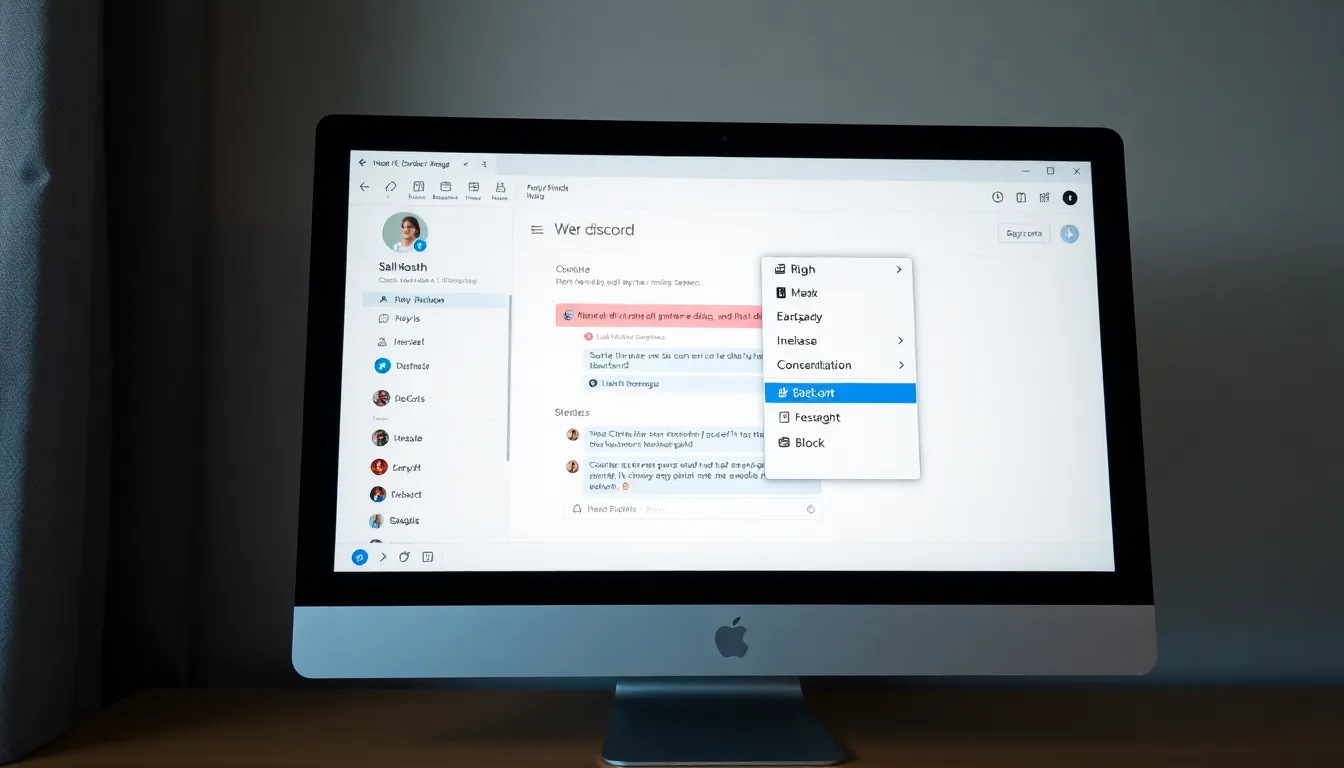
Blocking users on Discord efficiently enhances the chat experience by minimizing unwanted interactions. Follow these simple steps for both desktop and mobile applications.
Using the Discord Desktop App
- Open the Discord desktop app and navigate to the server or direct message where the user is present.
- Locate the user’s name in the member list or chat window.
- Right-click on the user’s name to reveal a context menu.
- Select the “Block” option from the menu. Confirm the action if prompted.
- Blocked users won’t be able to send direct messages or interact with your account in any servers.
Using the Discord Mobile App
- Launch the Discord mobile app and tap on the desired server or direct message thread containing the user.
- Tap on the user’s name or avatar to access their profile.
- In the profile view, find the three-dot menu icon in the upper right corner.
- Tap the menu and select the “Block” option.
- Blocked users cannot send direct messages or engage with your account in servers.
Additional Privacy Settings
Maintaining privacy on Discord enhances the overall experience and contributes to a comfortable environment. Users should take advantage of several privacy settings to further protect their interactions.
Adjusting Your Server Privacy Settings
Server privacy settings can prevent unwanted interactions within specific communities. Access the server settings by clicking on the server name, followed by the “Privacy Settings” option. From there, users can adjust who can send friend requests and directly message them. Restricting these interactions limits communication to friends only or members within the server. For those who prefer enhanced security, adjusting member permissions can minimize unsolicited messages or posts.
Managing Direct Messages
Managing direct messages plays a significant role in controlling communication flows. Users can choose to adjust direct message settings in their user settings under “Privacy & Safety.” Options include allowing direct messages from server members or disabling them entirely. It’s possible to mute notifications from specific servers or users, aiding in avoiding distractions. Users can also apply the “Server Privacy Default” setting, allowing a streamlined approach to managing direct messages while remaining connected to the community.
Unblocking Someone on Discord
Unblocking users on Discord allows for re-establishing communication with individuals who were previously blocked. This can enhance interactions within servers or chats.
Steps to Unblock on Discord
- Open Discord and navigate to the “User Settings” gear icon located at the bottom left of the screen.
- Select the “Privacy & Safety” option from the menu.
- Scroll down to the “Blocked Accounts” section.
- Identify the user to unblock and click on the “X” next to their name.
- Confirmation of unblocking may occur, but don’t worry; they’re unblocked immediately.
Unblocking users restores their ability to send direct messages and interact within servers.
Notifications After Unblocking
Notifications occur for interactions with unblocked users depending on their previous messaging behavior. Direct messages from unblocked individuals appear in the chat list, and users receive notifications if DMs are enabled.
Keep in mind that previous direct messages remain saved for future reference. Users control notification settings, deciding whether to mute chat notifications for specific users.
Blocking users on Discord is a powerful tool for maintaining a positive and enjoyable chat experience. By taking control of interactions and minimizing unwanted communications, users can create a more focused environment. The steps for blocking and unblocking users are straightforward, ensuring that anyone can easily manage their Discord experience.
Additionally, adjusting privacy settings enhances security and comfort while using the platform. With the right measures in place, users can enjoy the vast network of Discord without the stress of disruptive interactions. Embracing these tools empowers users to tailor their communication experience to suit their needs.

